
To manually add a new student account to the SWIFT platform, please follow the instructions below:
- Sign in with your Administrator login credentials via myedassess.com
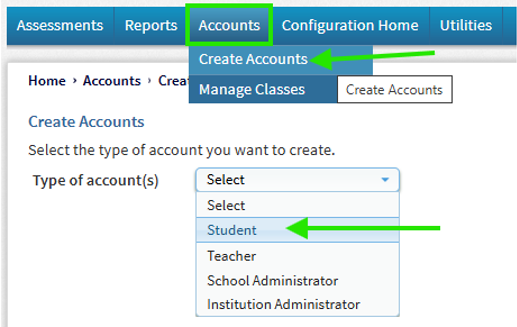
- Hover over ‘Accounts’ and select ‘Create Accounts’
- Then select ‘Student’ from the drop-down menu:
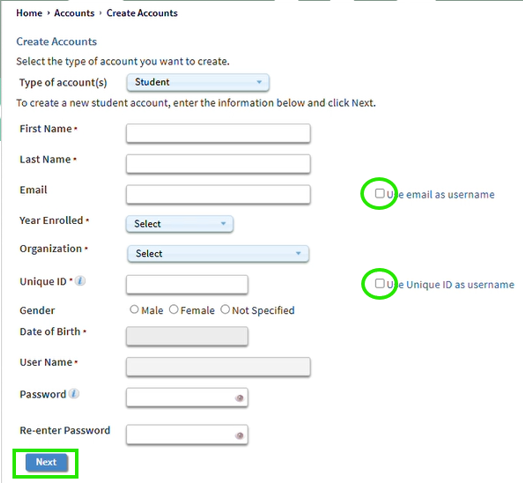
- Complete all the required information on the form.
-
- IMPORTANT: Please ensure that the Unique ID is truly unique to each individual student.
- Each ID must be at least 6 characters long, and ideally between 8 and 12 characters.
- We recommend using the student number, exam number, or student email address.
- If using a shorter number or code, a prefix (usually an acronym of the school’s name) can be added to the shorter number. (e.g. ABC1234)
- Note: A Unique ID can only be alphanumeric. No special characters will be accepted.
- IMPORTANT: Please ensure that the Unique ID is truly unique to each individual student.
- Tick the box next to ‘Unique ID’ or ‘Email’ to select which field to user as the student’s Username
- Once all the required information has been entered, click ‘Next’
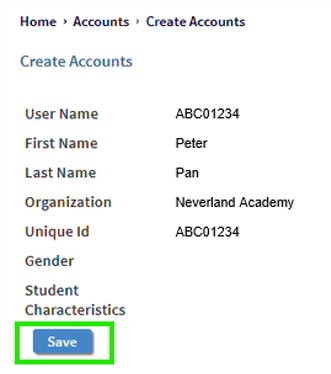
- Another screen will now appear with a summary of the student information. Click ‘Save’
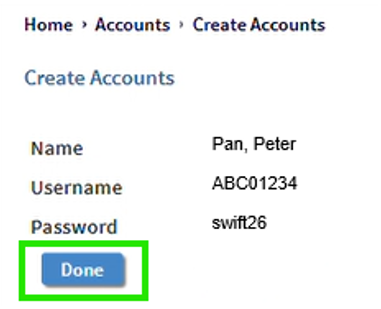
- A final screen with the student name, Username & Password will appear. Click on ‘Done’
Next steps
Once you have created the student accounts, you would then need to place the students into a class for them to be able to have access to the tests. (This is required as the tests are assigned to a class and not to the individual person)